Free Text to Speech Generator – Turn Text Into Voice
Turn written text into spoken audio with the free Text to Speech Generator from Mike’s Helpers. Type or paste your script, listen to the voice samples, choose the voice you like, and create a downloadable MP3 narration.
Use it for video narration, Facebook Reels, presentations, voiceovers, announcements, creative projects, or simply to hear your written words spoken aloud.
No microphone or camera is needed. Listen to the samples, choose a voice, type your words, and generate your narration.
🔊 Free Text to Speech Generator
, for a short pause, . for a stronger break, ? for question inflection, and ! for emphasis. Writing naturally and using punctuation carefully can make your finished narration sound much better.Text to Speech Generator
Turn written text into downloadable American English narration. No microphone is needed.
YOUR NARRATION
🎤 Choose From Six Narrator Voices
The Text to Speech Generator includes six different narrator voices: Athena, Asteria, Luna, Orion, Orpheus, and Zeus.
You do not have to waste time generating the same script with every voice just to find the one you like. Use the Hear Sample buttons to listen to prerecorded examples first.
Once you find the voice that fits your project, select it and generate your own narration.
Different voices can work better for different projects. Try a few samples before deciding which voice fits the mood, subject, and style of your script.
▶️ Listen to Voice Samples Before You Generate
Choosing a narrator should not be a guessing game. Each available voice includes a short prerecorded sample so you can hear its general sound before generating your audio.
Listen to as many samples as you want. When you find the voice you prefer, select it from the generator and use that voice for your script.
Remember that your own text may sound somewhat different from the sample. Sentence length, punctuation, wording, and subject matter can all affect the final delivery.
✍️ Write Better Text for Text to Speech
A text-to-speech voice reads what you give it, so punctuation can make a noticeable difference. Write your script the way you want it spoken instead of treating it exactly like ordinary written copy.
A comma can create a short pause. A period gives the narrator a stronger break between thoughts. Question marks help indicate questions, while exclamation points can create a stronger ending.
Shorter sentences can also make narration easier to understand, especially when you are creating audio for a short video or Reel.
Listen to your finished narration and adjust the wording or punctuation if something does not sound the way you intended.
🎬 Make Voiceovers for Videos and Reels
You do not need to record your own voice to add narration to a video. Write your script, choose a narrator, generate the MP3, and use the finished audio as the voice track for your project.
This can be especially useful for Facebook Reels, short videos, slideshows, promotional clips, how-to videos, announcements, and other projects where you want narration without using a microphone.
It also works well with the other free tools on Mike’s Helpers. You can create your narration here and then use the MP3 as part of your video project with the Online Image to Video Maker.
💾 Download Your Narration as an MP3
After your narration has been generated, listen to it in the audio player before downloading it.
If something does not sound right, change your wording or punctuation and generate a new version. Once you are satisfied with the result, click Download MP3 to save the narration.
MP3 files are widely supported by video editors, audio editors, media players, websites, and many other applications.
🎙️ Tips for Better Voiceovers
For better results, write for the ear instead of the page. Long complicated sentences may look fine when written but can be difficult to follow when spoken.
Keep sentences reasonably short, use punctuation to separate thoughts, and read your script yourself before generating it. If you naturally pause somewhere while reading, consider adding punctuation there.
For short videos and Reels, get to the important point quickly. The opening sentence should give the listener a reason to keep listening.
🧠 Frequently Asked Questions
Is the Text to Speech Generator free?
Yes. You can type or paste your text, choose a voice, generate narration, preview the finished audio, and download the MP3.
Do I need a microphone?
No. The tool creates narration directly from written text. You do not need to record your own voice or provide access to a microphone or camera.
What voices are available?
The generator currently includes six voices: Athena, Asteria, Luna, Orion, Orpheus, and Zeus.
Can I hear the voices before choosing one?
Yes. Use the Hear Sample buttons to listen to prerecorded examples of the available voices before choosing one for your narration.
Does listening to a sample generate my text?
No. The voice samples are prerecorded examples designed to help you choose a narrator. Your text is not generated until you select a voice and click the Generate MP3 button.
Can I control pauses in the narration?
Punctuation can affect the way your script is spoken. Try commas for shorter pauses and periods for stronger breaks between thoughts. Question marks and exclamation points can also affect the delivery.
What audio format does it create?
The finished narration can be downloaded as an MP3 audio file.
Can I use the MP3 for video narration?
Yes. The downloaded MP3 can be imported into compatible video editors and other media tools, including the Mike’s Helpers Online Image to Video Maker.
Why might my narration sound different from the voice sample?
The samples demonstrate the general sound of each voice. Your finished narration depends on the words, punctuation, sentence structure, and length of the text you enter.
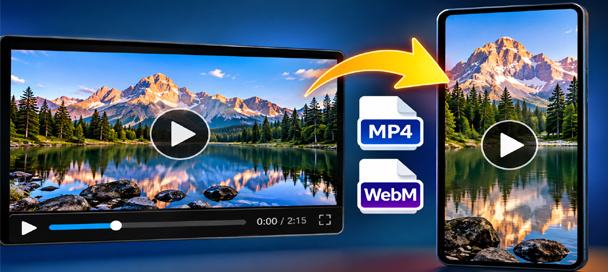
Free Video Converter and Crop Editor: 7 Powerful Ways to Edit Videos
🎬 Free Video Converter and Crop Editor Turn Long Videos Into Exactly What You Need Have you ever received a video that was almost perfect for your project? Maybe it was too long, the wrong shape, or saved in a…
☕ Support Mike’s Helpers
If this free Text to Speech Generator saved you some time, you can help keep Mike’s Helpers online and support the development of more free tools.