The Free Video Subtitle Generator automatically turns spoken words in your videos into editable captions using AI. Upload your video, let the tool recognize the speech, correct the text if needed, and download your subtitles in several useful formats.
Create subtitles for YouTube videos, Facebook reels, short clips, tutorials, interviews, and other video projects. Everything is processed directly in your browser, with no account, subscription, or paid transcription service required.
AI Video to Text & Subtitle Generator
Transcribe a video, edit the words, position captions, and save your results. Audio stays on your device; the first use downloads an AI model.
Choose a video to begin.
▶ Play or seek the video to preview captions. Use ↑ and ↓ to move the words before exporting.
Video export records playback in real time. MP4 is offered only if your browser supports MP4 recording; otherwise the result is WebM. Keep this tab active during transcription and export. You can correct caption timing in the editor.
🎬 What Is the Free Video Subtitle Generator?
The Free Video Subtitle Generator is an AI-powered browser tool that listens to the speech in a video and converts it into written subtitles.
Instead of watching a video repeatedly and typing every spoken word yourself, upload your file and let the AI create a starting transcript.
You can review the generated captions, correct mistakes, adjust subtitle timing, and choose where the captions appear on your video.
The tool also lets you save subtitle files separately or export a video with captions permanently displayed.
⚡ How to Generate Video Subtitles Automatically
Creating subtitles takes only a few steps.
- Upload Your Video: Select an MP4 or WebM video from your computer.
- Generate Subtitles: Start the AI transcription process and let the tool recognize the spoken words.
- Review the Captions: Read through the generated text and correct any transcription mistakes.
- Adjust the Timing: Make changes to when individual subtitles appear and disappear.
- Choose Subtitle Placement: Position the captions where they work best for your video.
- Download Your Results: Save the transcript, subtitle files, or a video with burned-in captions.
The AI handles the initial transcription, but you remain in control of the finished result.
🤖 AI Speech Recognition Without Typing Everything
The Free Video Subtitle Generator uses AI speech recognition to identify spoken English in your video.
This is particularly useful for videos with narration, interviews, instructions, demonstrations, or conversations.
The tool uses a browser-based Whisper speech recognition model to convert audio into text.
Clear speech and good audio quality generally produce better results. Background noise, overlapping voices, strong accents, and unusual names may require manual corrections.
✏️ Edit Subtitles and Correct Mistakes
Automatic speech recognition is useful, but no transcription system gets every word right.
That is why the tool includes editable captions.
After transcription, you can review individual subtitle entries and change the wording without generating the entire transcript again.
Correct names, punctuation, misunderstood words, and other mistakes before downloading your final subtitle files.
⏱️ Adjust Subtitle Timing
Good subtitles need more than accurate words. They also need to appear at the right moment.
The subtitle editor lets you adjust the start and end times of caption entries.
If a subtitle appears too early, stays visible too long, or disappears before the speaker finishes, you can correct its timing.
This is especially helpful for short videos where even a small timing difference can be noticeable.
📍 Choose Where Subtitles Appear on Your Video
Subtitle placement can make a big difference in how a video looks.
For example, a caption placed too low on a vertical video may compete with the buttons and descriptions displayed by social media platforms.
The tool provides a video preview and allows you to adjust the vertical position of your captions.
You can move subtitles to a more comfortable location before exporting the finished video.
💾 Download TXT, SRT, and VTT Subtitle Files
The Free Video Subtitle Generator gives you several ways to save your work.
- TXT: Download a plain-text transcript of the spoken words. Useful for notes, articles, descriptions, and reference material.
- SRT: Download a subtitle file containing caption text and timing information. Commonly used by video players and editing software.
- VTT: Download a WebVTT subtitle file for compatible web video players and other applications.
You can keep these files for future projects or import them into compatible video software.
🎞️ Export Videos With Burned-In Subtitles
Sometimes you want captions to remain visible no matter where the video is played.
The tool can export a WebM video with subtitles burned directly into the picture.
Unlike separate SRT or VTT files, burned-in subtitles become part of the video itself.
This is useful when you want a finished captioned clip without relying on a video platform to display a separate subtitle track.
Note: The burned-in video export uses WebM format. If you need MP4 afterward, you can convert the finished file using are Free video converter and editor.
📱 Great for Facebook Reels, YouTube Videos, and Short Clips
Subtitles can make videos easier to follow, especially when viewers are watching with the sound turned down.
The Free Video Subtitle Generator is useful for:
- Facebook reels and other short social media videos
- YouTube videos and tutorials
- Product demonstrations and how-to videos
- Interviews and spoken presentations
- Educational videos and recorded lessons
- Personal video projects and narrated clips
Whether you are creating a short promotional video or working with a longer recording, readable captions can help viewers follow what is being said.
🔊 Tips for Better AI Subtitle Accuracy
AI transcription works best when the speech is easy to hear.
For better results, use a video with clear narration and avoid excessively loud background music.
Try to minimize competing conversations and background noise.
After transcription, always review the text before publishing. Proper names, uncommon terms, and fast speech are especially worth checking.
🔒 Private, Browser-Based Video Transcription
The Free Video Subtitle Generator processes your video directly in your browser rather than uploading it to Mike’s Helpers for transcription.
The AI model and supporting software are downloaded from external providers when needed, but the video transcription itself runs on your device.
This means your computer performs the processing. The time required will depend on your video length, computer performance, and browser.
No account, paid API key, or subscription is required.
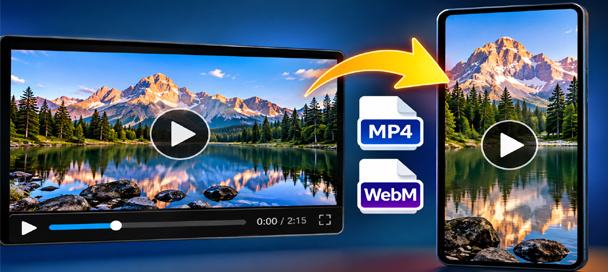
Free Video Converter and Crop Editor: 7 Powerful Ways to Edit Videos
🎬 Free Video Converter and Crop Editor Turn Long Videos Into Exactly What You Need Have you ever received a video that was almost perfect for your project? Maybe it was too long, the wrong shape, or saved in a…
🧪 Behind the Tool
The Free Video Subtitle Generator was built to make a common video-editing job easier: adding readable captions without manually transcribing every word.
The tool combines browser-based AI speech recognition with a practical subtitle editor.
It can generate an initial transcript, let you correct the words and timing, adjust caption placement, and save the results in multiple formats.
Unlike online transcription services that require uploading videos to a remote processing server, this tool performs its transcription locally in your browser.
Like the other tools on Mike’s Helpers, the goal is simple: provide a useful, free tool without requiring another account or subscription.
🧠 Frequently Asked Questions
What does the Free Video Subtitle Generator do?
It uses AI to convert spoken English in a video into editable subtitles. You can correct the captions, adjust timing, and download subtitle files or a video with burned-in captions.
Is the Video Subtitle Generator free?
Yes. The tool is free to use with no subscription, signup, or paid transcription credits required.
Which video formats can I upload?
The tool supports MP4 and WebM video files. Your browser must also support the audio and video codecs used in the file.
Does the tool automatically generate subtitles?
Yes. Its AI speech recognition model listens to the video’s audio and creates an initial set of timed captions.
Can I edit the subtitles after they are generated?
Yes. You can correct the text and adjust the timing of individual subtitle entries.
Can I move the subtitles higher or lower?
Yes. The tool includes subtitle placement controls so you can adjust the vertical position of captions in the video preview.
Can I download an SRT subtitle file?
Yes. You can download subtitles as SRT or VTT files, or save the spoken text as a TXT transcript.
Can I download a video with subtitles already on it?
Yes. The tool can export a WebM video with the captions burned directly into the picture.
Does it support languages other than English?
The current version uses an English speech recognition model and is intended for spoken English.
Does my video get uploaded to a server?
No. The video transcription runs locally in your browser. The AI software and model files are downloaded separately when needed.
Why does the AI take time to load the first time?
The tool must download the speech recognition model and supporting files before transcription can begin. Loading time depends on your internet connection and browser.
Will the subtitles always be perfectly accurate?
No. AI transcription can make mistakes, particularly with background noise, music, overlapping speakers, or unusual words. Review the generated captions before using them in a finished video.
This site is ad-supported and free to use. If one of the tools helped you today, feel free to leave a tip.