Find Free Images, Videos, Music & Audio in One Place
The Total Free Media Finder turns an article, biography, script, or even a few search terms into quick links to free-use, public domain, open-access, and openly licensed media. Search multiple image, video, music, and audio libraries without visiting every site one at a time.
Total Free Media Finder
Paste an article, biography, script, or notes. The tool detects useful names, places, dates, and your own extra search terms, then builds quick links to free-use, public-domain, open-access, and openly licensed image, video, music, and audio sources.
🎥 Watch this short video to see how the Free Public Domain Media Finder works in real time.

Mike says: “One click is all it takes!”
What Is the Total Free Media Finder?
The Total Free Media Finder is designed to solve one of the most annoying parts of creating content: finding useful media without spending half the day searching for it.
Paste your article or other text into the tool and it looks for useful search subjects such as people, places, landmarks, roads, and dates. It then turns those subjects into quick search links for multiple free media libraries.
Instead of searching one website, coming up empty, opening another website, typing the same search again, and repeating the process, you can jump directly from one source to another.
Need something the tool did not automatically detect? Add your own search terms and include them in the results.
Find Free Images From Multiple Sources
Finding a good photograph can take longer than writing the paragraph it is supposed to illustrate. The Total Free Media Finder gives you quick image searches across a much wider selection of sources.
Depending on your search, you can explore:
- Pexels
- Pixabay
- Wikimedia Commons
- Openverse
- Library of Congress
- Smithsonian collections
- NASA
- New York Public Library Digital Collections
- Europeana
- Flickr Commons
- PublicDomainVectors
Different collections are useful for different jobs. A modern stock-style photograph may be easy to find on Pexels or Pixabay, while an old photograph, poster, historical person, landmark, or piece of Americana may be better suited to one of the large museum, archive, or library collections.
Find Free Video Clips
The Total Free Media Finder is not limited to still images. Turn on the Video option to create quick searches for video footage related to your detected subjects and extra search terms.
Video searches include sources such as Pexels Video, Pixabay Video, Wikimedia Commons, NASA, and the Internet Archive.
This can be useful when creating social media videos, presentations, educational projects, documentaries, website content, or other projects that need footage instead of another still photograph.
Find Free Music and Audio
Sometimes the missing piece is not an image at all. It is music.
Turn on Music & Audio and the Total Free Media Finder provides quick searches across several music and audio resources, including:
- Pixabay Music
- Free Music Archive
- Musopen
- Openverse Audio
- Internet Archive Audio
- Wikimedia Commons Audio
This makes the tool useful when you need background music, historical audio, classical music, sound recordings, or other audio for a video, presentation, website, or creative project.
Always check the license or usage information for the individual recording before using it. Different websites, and sometimes different files on the same website, can have different requirements.
How to Use the Total Free Media Finder
- Paste your article, biography, script, notes, or other text into the box.
- Add any additional subjects you want to search for under Extra Search Terms.
- Choose Images, Video, Music & Audio, or any combination of the three.
- Click Find Free Media.
- Review the detected people, places, landmarks, roads, dates, and extra search terms.
- Click the media source you want to search.
- Review the individual media item’s license before downloading or using it.
You can search several libraries for the same subject without retyping it every time.
Paste an Entire Article and Let the Tool Find Search Ideas
You do not have to figure out every search phrase yourself.
Paste an article into the Total Free Media Finder and the tool looks through the text for subjects that may lead to useful media.
For example, a biography may contain the person’s name, cities where they lived, important locations, historical dates, theaters, universities, highways, or other subjects worth searching.
A history article might contain a completely different collection of people, locations, dates, roads, landmarks, and events.
The tool gives you a starting point for the media hunt instead of making you pick through the article manually.
Add Your Own Extra Search Terms
Automatic detection can only find what is actually written in your text. Sometimes the best illustration is something the article never specifically names.
That is why the Total Free Media Finder includes Extra Search Terms.
You might add searches such as:
- 1950s roadside motel
- vintage Halloween mask
- old movie theater
- Route 66 neon sign
- cowboy boots
- haunted house
- circus poster
- spooky background music
Separate the terms with commas and the tool adds them to your search results.
Search Images, Video, or Audio Separately
You do not always need everything.
If you are writing an article and only need photographs, leave Images selected and turn off Video and Music & Audio.
If you are making a video and need footage and background music, search those instead.
You can also leave all three selected when you want to see every available option.
Search Historical and Archival Media
Modern stock photography is only one part of the internet’s free-media landscape.
The Total Free Media Finder also gives you access to major historical and cultural collections. These can be particularly valuable when researching people, places, American history, transportation, architecture, entertainment, wars, historic events, old advertising, posters, fashion, and everyday life from the past.
Sources such as the Library of Congress, Smithsonian, Wikimedia Commons, NYPL Digital Collections, Europeana, Flickr Commons, NASA, and the Internet Archive can lead to material that may never appear in an ordinary stock-photo search.
Search People and Names
When the finder detects a person’s name, it creates media searches using that name.
This can be particularly useful for biographies and historical articles. Instead of manually searching several collections for the same person, use the links beside the detected name to move between available sources.
Not every detected name will produce useful results from every collection. That is part of the reason the tool gives you multiple places to look.
Search Places, Landmarks and Roads
Locations often make excellent illustrations.
The finder looks for places and location-related subjects such as states, countries, landmarks, parks, museums, theaters, hotels, motels, casinos, airports, highways, routes, and other recognizable locations.
This is especially helpful for travel articles, local history, biographies, roadside history, and stories tied to a particular place.
Use Dates to Find Historical Media
Dates can also become useful search terms.
If the tool detects a year or full date in your text, it can include that information in the results. A year that seems unimportant while reading an article may turn out to be the key to finding the right historical photograph, film, poster, or recording.
Copy Your Search Terms
The Copy Search Terms button collects the detected terms so you can copy them for use somewhere else.
This is handy when you want to continue researching outside the sources included in the finder or save your search ideas for later.
Public Domain, Open Access and Free-Use Media Are Not the Same Thing
This is important.
The Total Free Media Finder searches sources containing several different kinds of reusable media. Some individual works may be in the public domain. Some may be released under Creative Commons licenses. Some may be offered under a site’s own free-use license. Others may require attribution or have additional restrictions.
Do not assume that every result is automatically free to use for every purpose.
The finder helps you locate promising media. The website hosting the individual image, video, or recording provides the rights and licensing information you should check before using it.
Why Search More Than One Free Media Website?
Because no single media collection has everything.
Searching for a modern photograph of a dog and searching for a photograph of a small American town in 1937 are two completely different jobs.
A stock-media site might be perfect for the first search and nearly useless for the second. A historical archive could have exactly the opposite problem.
The Total Free Media Finder lets you move between different types of collections without repeatedly typing the same searches.
No API, Account, or Article Upload Required
The text analysis used by the Total Free Media Finder runs directly in your browser.
Your pasted article does not need to be uploaded to Mike’s Helpers for processing. There is no account to create and no external artificial intelligence service required to analyze your article.
The tool simply identifies useful terms and builds links that let you search the selected media websites yourself.
Who Can Use the Total Free Media Finder?
The tool can help bloggers, website owners, students, teachers, video creators, researchers, social media creators, designers, marketers, historians, writers, and anyone else who regularly hunts for reusable media.
It is particularly useful when you already have a finished article or script and now need to figure out what images, footage, or audio could go with it.
One Search Idea, Many Places to Look
The real advantage of the Total Free Media Finder is not that it magically chooses the perfect photograph or song for you.
It makes the hunt faster.
Paste what you are working on once. Let the tool identify useful subjects. Add anything it missed. Then jump between free media collections until you find what your project needs.
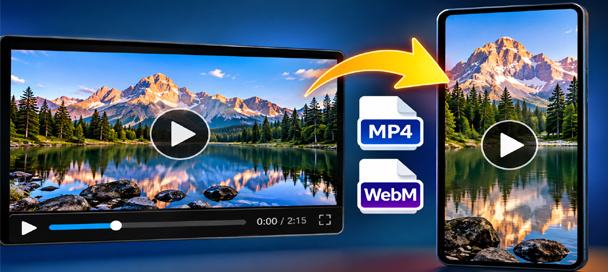
Free Video Converter and Crop Editor: 7 Powerful Ways to Edit Videos
🎬 Free Video Converter and Crop Editor Turn Long Videos Into Exactly What You Need Have you ever received a video that was almost perfect for your project? Maybe it was too long, the wrong shape, or saved in a…
Behind the Tool
The original version of this tool started as a simple Public Domain Media Finder. I built it because finding legal-to-use images for an article often meant searching the same subject over and over on different websites.
It worked, but the idea could go much further.
The Total Free Media Finder expands the original concept beyond a handful of image websites. It can now help search modern photography, historical archives, public-domain collections, open-access material, free video footage, music, and audio from many different sources.
I also added manual search terms because sometimes you know exactly what kind of picture, footage, or music you want even though those words never appear in the article.
The goal is still the same as the original tool: spend less time hunting from site to site and more time actually working on your project.
Total Free Media Finder FAQs
What does the Total Free Media Finder do?
It analyzes text for useful search subjects such as names, places, landmarks, roads, and dates, then creates quick links for searching multiple image, video, music, and audio resources.
Does the tool download the media for me?
No. It sends you to the appropriate search results on the original media website. This lets you inspect the item, choose what you want, and review its licensing information before downloading it.
Are all of the images public domain?
No. The finder searches a mixture of public-domain, open-access, Creative Commons, and other free-use sources. Always check the rights or license information for the individual item before using it.
Can I find free video footage?
Yes. Select Video to create searches for video sources such as Pexels Video, Pixabay Video, Wikimedia Commons, NASA, and Internet Archive movies.
Can I find free music?
Yes. Select Music & Audio to search resources including Pixabay Music, Free Music Archive, Musopen, Openverse Audio, Internet Archive Audio, and Wikimedia Commons Audio.
Can I search for something that is not mentioned in my article?
Yes. Enter your own subjects in the Extra Search Terms box. Separate multiple searches with commas.
Can I search only for images?
Yes. Turn off the Video and Music & Audio options and leave Images selected.
Can I search images, video, and music at the same time?
Yes. Leave all three media options selected and the finder will provide the available source links for each detected search term.
Does the tool upload my article?
No. The article analysis runs in your browser. Your pasted text does not need to be uploaded to Mike’s Helpers for the finder to identify search terms.
Does the Total Free Media Finder use AI?
No external AI service is required. The tool uses browser-based JavaScript to identify useful search terms in your text.
Why doesn’t every search return useful media?
Different collections specialize in different material. A modern stock-photo library may have little historical material, while an archive may have very little modern stock photography. The advantage of the finder is that you can quickly try several different collections.
Do I need to give credit when I use something?
That depends on the individual item and its license. Some material may require attribution while other material may not. Check the source page for the specific image, video, music track, or recording you intend to use.
Is the Total Free Media Finder free?
Yes. The tool is free to use and does not require an account or subscription.
Important: Mike’s Helpers helps you locate potentially reusable media but does not determine the copyright or licensing status of individual files. Always review the rights, license, attribution requirements, and usage restrictions shown by the original source before using media in your project.