The Video Converter & Crop Editor lets you trim, crop, resize, and convert common video files directly in your browser. Start with MOV, MP4, WebM, M4V, AVI, MKV, MPEG, MPG, or other compatible video files, choose the section you want, select an output shape, and create an MP4 or WebM video without uploading your original video to Mike’s Helpers.
Turn landscape video into vertical 9:16 clips for Facebook Reels and other social media, create square videos, trim long videos into shorter clips, or convert compatible video formats to MP4 or WebM. You can even make several separate clips from the same loaded video without choosing the original file again.
Turn landscape video into vertical 9:16 clips for Facebook Reels and other social media, create square videos, trim long videos into shorter clips, or simply convert a MOV file into MP4. You can even make several separate clips from the same loaded video without choosing the original file again.
Video Converter & Crop Editor
Private by design: your video is processed in your browser and is not uploaded to Mike's Helpers.
Original Video
Output Preview
Test build: the single-thread engine is downloaded from a third-party CDN. Your video remains on your device. Large or long videos can require substantial memory. Keep this tab open while converting. MOV support depends on the codecs contained in the MOV file.
🎬 What Is the Video Converter & Crop Editor?
The Video Converter & Crop Editor is a free browser-based video tool for converting, trimming, and changing the shape of video files. It was designed for those times when you have a video but only need a small piece of it, need it in a different format, or need to turn a landscape video into a vertical clip.
You can load a video, select the exact starting and ending points you want, choose the output format and shape, and create the finished video right in your browser.
The tool can also keep the original video loaded while you make additional clips. That means you can take one longer source video and create several different short clips without selecting and loading the original file again each time.
✂️ Trim a Video to the Part You Actually Want
Sometimes you do not need the entire video. Maybe you have a three-minute promotional video but only want a 10-second scene for a Reel, post, presentation, or another project.
Use the video player to find where your clip should begin and click Set at Playhead for the Start time. Move to where you want the clip to finish and set the End time.
The Video Converter & Crop Editor shows the length of the finished clip before you convert it, making it easier to create short videos without guessing at the timing.
🔁 Make Multiple Clips From One Video
If a longer video contains several sections you want to use, you do not have to choose the original video again for every clip.
Load the source video once, set the Start and End points for your first clip, convert it, and download the result. Then change the Start and End points and convert another section from the same original video.
When you begin setting up the next clip, the previous finished result is cleared so it is easy to tell that you are creating a new video. The original source video remains loaded and ready to use.
This is especially handy when turning one longer promotional video, interview, movie clip, demonstration, or other source video into several shorter clips.
📱 Turn Landscape Video Into Vertical 9:16 Video
Videos supplied by companies, studios, businesses, and other sources are often created in the traditional 16:9 landscape format. That is great for televisions and computer screens, but it is not always the shape you need for social media.
Select 9:16 Vertical to create a tall video designed for vertical viewing. The Output Preview lets you see how the video will be framed before you convert it.
This makes the tool useful when preparing video clips for Facebook Reels, YouTube Shorts, TikTok, and other places where vertical video is commonly used.
🖥️ Choose the Video Shape You Need
The Video Converter & Crop Editor gives you several output shapes so the same source video can be prepared for different uses.
- Original: Keep the original video’s shape.
- 16:9 Landscape: Standard widescreen video for websites, computers, televisions, and many video players.
- 9:16 Vertical: Tall video for Reels, Shorts, TikTok, and other vertical-video uses.
- 1:1 Square: Square video for social media posts and other layouts where equal width and height work best.
You can change the selected shape and check the Output Preview before beginning the conversion.
🖼️ Control How the Video Is Cropped
Changing a landscape video into a vertical or square video means some of the original picture may need to be removed. The Crop Position setting gives you control over which part of the picture is kept.
- Center: Keeps the center portion of the original video.
- Left / Top: Favors the left or upper portion of the picture when cropping.
- Right / Bottom: Favors the right or lower portion of the picture when cropping.
- Fit Entire Video: Keeps the complete original picture inside the new shape and may add black space when necessary.
The Output Preview makes it easier to decide which option works best before spending time converting the video.
👀 Preview Your Crop Before Converting
The page displays the Original Video and an Output Preview near each other so you can compare the source with the shape of the finished video.
If you select 9:16 Vertical, for example, the Output Preview changes to the vertical shape and shows the portion of the source video that will appear in the finished clip.
This can save time because you can spot a bad crop before creating the finished video instead of discovering the problem after the conversion is complete.
🔄 Convert MOV to MP4
One of the most useful jobs this tool can perform is converting compatible MOV video files to MP4.
MOV files are commonly supplied by video editors, production companies, studios, cameras, and other sources. They can be large and are not always the most convenient format for websites, social media, or other software.
Choose MP4 as your output format and the Video Converter & Crop Editor will create an MP4 version of the selected portion of your video.
Because MOV is a container that can hold different types of video and audio, compatibility can depend on the codecs contained inside the particular MOV file.
🎞️ Convert Video to WebM
You can also choose WebM as the output format. WebM is a video format commonly associated with web and browser-based video.
This gives you a second output choice when MP4 is not the format you need for a particular project.
🔊 Keep the Original Audio or Remove It
Leave Keep Audio selected when you want the finished clip to include the audio from the original video.
If you only need the picture, turn the audio option off before converting. The finished video will then be created without the original audio track.
This can be useful when you plan to add different narration, music, sound effects, or another audio track later in a video editor or Reel maker.
⚙️ Choose Your Video Quality
The Quality setting gives you a simple way to balance video quality and file size without dealing with complicated video encoding controls.
- High: Better quality when preserving the picture is more important than keeping the file small.
- Medium: A practical balance between quality and file size for everyday use.
- Small File: Creates a more compressed video when reducing file size is the priority.
For most everyday clips and social media projects, Medium is a good place to start.
🚀 How to Convert and Crop a Video
Using the Video Converter & Crop Editor only takes a few steps.
- Click Choose Video and select your source video.
- Use the Original Video player to find where your clip should begin.
- Click Set at Playhead beside Start.
- Move to where you want the clip to finish.
- Click Set at Playhead beside End.
- Choose MP4 or WebM.
- Select Original, 16:9, 9:16, or 1:1 for the output shape.
- Choose the crop position that best frames your video.
- Select your preferred quality.
- Choose whether to keep the original audio.
- Click Convert Video.
- When processing finishes, click Download Video.
To make another clip from the same source, simply choose new Start and End points and convert again. You do not need to select the original video again.
🎥 Useful for Facebook Reels and Short Videos
The Video Converter & Crop Editor is particularly useful when you receive a longer landscape video but only need a few seconds for a vertical Reel.
You can load the original video, find the best section, trim it down, convert it to 9:16, and download the new clip. If another good section appears later in the original video, set new Start and End points and create another clip.
The short clips can then be used in Facebook Reels, YouTube Shorts, TikTok videos, presentations, websites, video editors, or other projects.
💡 Why Make Short Clips Instead of Editing the Whole Video?
A large video file can contain far more material than you actually need. Working with only the useful sections can make the rest of your project easier.
For example, instead of putting a three-minute promotional video into another editor when you only need seven seconds from it, you can extract those seven seconds first. The smaller finished clip is easier to organize, move, and combine with other material.
If you need several different sections, make each one as a separate clip and use only the pieces you want.
🔒 Private, Browser-Based Video Processing
The Video Converter & Crop Editor processes your video in your browser rather than uploading the original video to Mike’s Helpers for conversion.
This is especially useful with large video files because you do not have to wait for the entire source video to upload to Mike’s Helpers before you can begin working with it.
The conversion work uses your own device’s browser and processing power. For that reason, very large or very long videos can take more time and require more memory than short clips.
Keep the page open while a conversion is running and allow the current conversion to finish before starting another one.
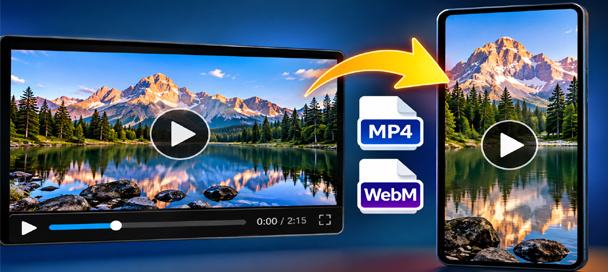
Free Video Converter and Crop Editor: 7 Powerful Ways to Edit Videos
🎬 Free Video Converter and Crop Editor Turn Long Videos Into Exactly What You Need Have you ever received a video that was almost perfect for your project? Maybe it was too long, the wrong shape, or saved in a…
🧪 Behind the Tool
The Video Converter & Crop Editor came from a very practical problem. Sometimes I receive a long video when all I really need is a few seconds of it for another project.
The source might also be a landscape MOV when what I really need is a short vertical MP4 for a Reel. Loading a large video into one program just to trim it, another program to convert it, and something else to change the shape turns a simple job into a project of its own.
So this tool was built to put those basic jobs together. Load the source once, choose the part you want, pick the shape, convert it, and download the finished clip.
During development, one feature became particularly important: being able to make more than one clip from the same source video. If a three-minute video contains four useful scenes, it makes no sense to make you select the same three-minute source file four separate times.
The finished version keeps the source video available while you create additional clips. Change the Start and End points, convert again, and continue until you have the pieces you need.
Like the other tools on Mike’s Helpers, the goal is not to replace professional video-editing software. It is designed to handle a common everyday job without requiring another account, subscription, upload service, or complicated editing program.
🧠 Frequently Asked Questions
What does the Video Converter & Crop Editor do?
It lets you trim a video, change its aspect ratio, choose a crop position, keep or remove the audio, and convert the finished clip to MP4 or WebM directly in your browser.
What video files can I start with?
You can start with many common video formats, including MOV, MP4, WebM, M4V, AVI, MKV, MPEG, and MPG. Compatibility can vary depending on the video and audio codecs stored inside the file.
Can I convert MOV to MP4?
Yes. Compatible MOV files can be loaded into the tool and converted to MP4. MOV files can contain many different codecs, however, so compatibility can depend on how the original MOV was created.
Can I turn a landscape video into a vertical video?
Yes. Choose 9:16 Vertical to create a tall video from a landscape source. Use the Output Preview and Crop Position controls to see how the source will fit into the vertical frame.
Can I make a video for Facebook Reels?
Yes. The 9:16 Vertical option is useful for creating vertical clips for Facebook Reels and other short-form vertical-video platforms.
Can I trim just a few seconds from a long video?
Yes. Use the video player and Set at Playhead buttons to choose the Start and End points. Only that selected portion is used for the finished clip.
Can I make several clips from the same video?
Yes. After making your first clip, leave the original source loaded and choose new Start and End points. You can then convert another section without selecting the original video again.
Do I have to reload my original video for every clip?
No. The source video remains loaded while you create additional clips. This makes it much easier to pull several short sections from one longer video.
What video shapes are available?
You can keep the Original shape or choose 16:9 Landscape, 9:16 Vertical, or 1:1 Square.
What does Fit Entire Video do?
Fit Entire Video keeps the complete original picture visible inside the new output shape. Because the source and output may have different proportions, black space can be added around the picture when necessary.
Can I remove the audio?
Yes. Turn off Keep Audio before converting and the finished video will be created without the source video’s audio track.
Can I convert to WebM?
Yes. You can choose either MP4 or WebM as the output format.
Does the video get uploaded to Mike’s Helpers?
No. Video processing takes place in your browser rather than uploading your original video to Mike’s Helpers for conversion.
Why can a large video take longer to convert?
The conversion is being performed by your browser using your device’s processing power and memory. Larger files, longer clips, higher-quality settings, and major changes in video dimensions can require more processing time.
Can I close the page while the video is converting?
No. Keep the page and browser tab open until the conversion has finished and the Download Video option appears.
Will every MOV file work?
Not necessarily. MOV is a container that can hold video and audio encoded in different ways. Most ordinary compatible files should work, but a particular MOV may use a codec that the browser or conversion engine cannot handle.
Is the Video Converter & Crop Editor free?
Yes. The tool is free to use with no account, subscription, or signup required.
This site is ad-supported and free to use. If one of the tools helped you today, feel free to leave a tip.