How to Write Image Alt Text the Correct Way
Learning how to write image alt text is one of the most overlooked skills in website management. Most website owners understand that images matter. They choose them carefully and place them strategically. Then they reach the alt text field and stop.
Some leave it blank. Some type the filename. Some copy the image caption and paste it in. A few stuff it with keywords and hope for the best.
None of those approaches is correct. But the fix is simpler than most people expect.
This article explains what image alt text is, why it matters for both accessibility and SEO, and exactly how to write image alt text that works. The nine tips below cover every situation a typical website owner is likely to encounter.
What Is Image Alt Text?
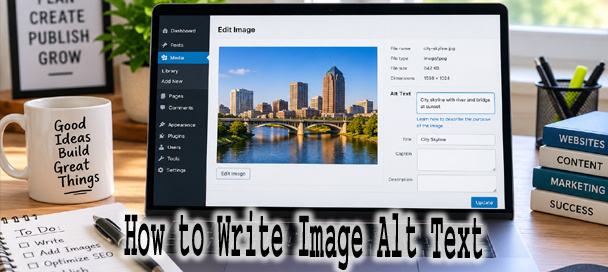
Alt text is short for alternative text. It is a written description added to an image in your website’s code. In WordPress, you will find the alt text field in the image block settings or in the media library when you select an image.
The HTML looks like this in the background:
<img src="blue-running-shoes.jpg" alt="Blue running shoes on a white background">
Visitors to your website typically never see this text. It exists for two specific situations.
The first situation is when an image fails to load. The alt text displays in place of the broken image. It tells the visitor what should have been there.
The second situation is when someone uses a screen reader. Screen readers are software tools used by people who are blind or visually impaired. They read page content aloud. When a screen reader reaches an image without alt text, it either reads the raw filename or says nothing useful. With good alt text, the screen reader reads a description the visitor can understand.
Alt text is not the same as an image caption. A caption appears visibly beneath the image on the page. Alt text is invisible to sighted users. A caption can complement alt text, but it does not replace it.
Why Image Alt Text Matters for Accessibility
According to the World Health Organization, approximately 2.2 billion people worldwide have some form of vision impairment. Many of them use screen readers to navigate the web.
When a screen reader reaches an image, it looks for alt text. If none exists, it may read the filename instead. A filename like IMG_4823.jpg tells a visitor nothing useful. A filename like hero-banner-final-v3.png is even worse.
Knowing how to write image alt text correctly means understanding what information the image was meant to communicate. If your image shows a step-by-step process, the alt text should describe that process. If your image shows a product, the alt text should describe the product clearly enough that someone who cannot see it understands what it is.
The Web Content Accessibility Guidelines, known as WCAG, require meaningful alt text for all informative images. For many businesses, accessibility compliance is also a legal consideration. Accessibility lawsuits involving websites have increased significantly in recent years.
Does Image Alt Text Help SEO?
Yes, but not in the way some people expect.
Search engines cannot see images the way humans do. Google analyzes images, but still relies heavily on surrounding text and the alt attribute to understand what an image shows and why it appears on a particular page.
Writing image alt text correctly helps search engines in three ways. It provides context about the image itself. It supports the overall topic of the page. It gives your images a better chance of appearing in Google Image Search results.
Alt text is not a magic ranking tool. Adding a keyword to every image will not push a page to the top of search results. Keyword stuffing in alt text can actually hurt your SEO by making your content look manipulative to search engines.
Think of alt text as useful context rather than a ranking lever. Write it for the person who cannot see the image. If it also happens to include a relevant keyword naturally, that is a genuine benefit.
How to Write Image Alt Text: 9 Tips That Actually Work
Tip 1: Describe What Actually Matters in the Image
Not every detail in an image needs to be described. Focus on the information the image was placed on the page to communicate.
If a blog post about home office setup includes a photo of a desk, your alt text does not need to describe the wall color or the plant in the corner. Describe the desk and anything on it that is relevant to the article.
When you think about how to write image alt text for any given image, start by asking what the image is doing on this page. That question focuses your description immediately.
Tip 2: Be Specific
Vague alt text is nearly as unhelpful as no alt text at all.
Instead of: woman at computer
Write: Woman reviewing analytics dashboard on a laptop at a standing desk
Specificity helps both screen reader users and search engines understand exactly what the image contains.
Tip 3: Use the Focus Keyphrase Only When Natural
If your page has a focus keyphrase and the image genuinely relates to it, include the keyphrase in the alt text naturally.
Do not force the keyphrase into alt text where it does not fit. Do not repeat it across multiple images on the same page. One natural use across all the images on a page is enough.
Tip 4: Avoid Unnecessary Wording Like Image of or Photo of
Screen readers already announce that they are describing an image. Adding Image of or Photo of at the start creates unnecessary repetition.
Instead of: Image of a red coffee mug on a wooden table
Write: Red ceramic coffee mug on a wooden table
This is one of the simplest improvements you can make when learning how to write image alt text.
Tip 5: Handle Decorative Images Correctly
Not every image carries useful information. Decorative images, such as dividers, background textures, or purely visual design elements, should have empty alt text.
Empty alt text looks like this in the code: alt=""
When alt text is empty, screen readers skip the image entirely. This is the correct behavior for images that serve no informational purpose. Leaving the alt attribute out entirely is different from leaving it empty, and leaving it out causes the screen reader to read the filename.
Tip 6: Include Important Text Contained in Images
If an image contains text, that text usually belongs in the alt attribute. This applies to infographics, banners with promotional copy, screenshots of software, and images of quotes.
If the image shows a banner reading Free Shipping on Orders Over $50, your alt text should include that information. A screen reader user visiting your site deserves access to that offer.
Tip 7: Do Not Automatically Copy the Caption
Captions and alt text serve different purposes. A caption is written for sighted users who can already see the image. Alt text is written for users who cannot.
The two can be similar. They should not always be identical. A screen reader user who hears the same text twice from caption and alt text receives a poor experience.
Tip 8: Make Product Image Descriptions Specific
Ecommerce pages require careful attention when writing image alt text. Generic product descriptions waste the opportunity.
Instead of: Blue shirt
Write: Men’s slim-fit Oxford shirt in navy blue with button-down collar
Do not copy the same alt text across multiple product images for the same item. If you have five images of the same shirt showing different angles, each alt text should describe what that specific image shows.
Tip 9: Imagine the Image Is Missing
This is the most useful test for any alt text you write.
Imagine the image has failed to load. All a visitor can see is the text in the alt field. Does that text communicate the useful information the image was meant to provide?
If the answer is yes, your alt text is working. If the answer is no, revise it until the text stands on its own as a meaningful description.
Common Image Alt Text Mistakes
These errors appear most frequently on ordinary business websites and blogs.
Using the filename as alt text. Raw filenames like DSC00412.jpg or banner-final-v2.png communicate nothing useful. Always write a real description.
Writing vague descriptions. Alt text like image or photo or picture provides no information. Be specific about what the image shows.
Keyword stuffing. Writing alt text like blue running shoes best running shoes cheap running shoes online damages your SEO. Write naturally for the reader first.
Writing descriptions that are too long. Most sources recommend keeping alt text between 80 and 150 characters. Very long descriptions become difficult for screen readers to process effectively.
Using identical alt text for multiple images. Each image on a page should have a unique description reflecting what that specific image shows.
Leaving alt text blank for informative images. Blank alt text on an image that carries useful information means that information is lost entirely for screen reader users and search engines.
A Simple Formula for How to Write Image Alt Text
If you are not sure where to start, use this formula.
Subject + important detail or action + relevant context
Here are three examples applied to typical website images.
A photo of a team meeting: Four team members reviewing project timeline on a whiteboard in a conference room
A product image: Stainless steel insulated water bottle in forest green with a screw-top lid
A blog post hero image: Person typing on a laptop with a notebook and coffee cup on a wooden desk
The formula keeps your descriptions focused. It prevents both vagueness and unnecessary length. Apply it consistently and your alt text quality will improve immediately.
How to Check Your Image Alt Text Before Publishing
Before publishing any page or post, take two minutes to review your image alt text.
In WordPress, select each image in the block editor. The alt text field appears in the right-hand settings panel. Check that every informative image has a description. Check that decorative images have an empty alt attribute rather than a blank field.
You can also right-click any image on a published page and select Inspect or Inspect Element in your browser. This opens the code view where you can see the alt attribute directly.
Several browser extensions scan pages for missing or problematic alt text. The WAVE accessibility tool from WebAIM is widely used and free. It flags images with missing alt text and highlights other accessibility issues on the page.
For a faster way to generate starting descriptions for your images, the AI Photo Caption Generator on Mike’s Helpers can give you a working draft to refine. Once your alt text is in place, run your content through the SEO Content Analyzer to check how your overall page is performing.
Image Alt Text Examples: Good Versus Bad
The following examples show the difference between weak and strong alt text across several common image types.
Ordinary blog post image
Weak: coffee
Strong: Overhead view of a latte in a white ceramic mug beside an open notebook on a marble surface
Ecommerce product image
Weak: shoes
Strong: Women’s white leather sneakers with gold eyelets and a platform sole, shown from the side
Chart or graph
Weak: chart showing data
Strong: Bar chart showing website traffic growth from 1,200 monthly visitors in January to 4,800 in June
Photograph of a person
Weak: woman smiling
Strong: Business owner standing outside her bakery holding a tray of freshly baked croissants
Screenshot of software
Weak: screenshot
Strong: WordPress dashboard showing the Posts menu with the Add New button highlighted
Final Checklist: How to Write Image Alt Text Before You Publish
- Every informative image has a written alt text description.
- Decorative images have an empty alt attribute, not a blank field.
- No alt text begins with Image of or Photo of.
- Each description is specific about what the image actually shows.
- No two images on the page share identical alt text.
- Any text visible inside an image is included in the alt text.
- The focus keyphrase appears naturally in one relevant image description.
- Each alt text passes the missing image test.
- Alt text length stays between 80 and 150 characters where possible.
Conclusion
Knowing how to write image alt text correctly comes down to one core principle. Write for someone who cannot see the image and needs to understand what useful information it contains.
Everything else follows from that. Be specific. Avoid repetition and keyword stuffing. Handle decorative images with an empty attribute. Include text that appears inside images when it matters.
Search engines benefit when you do this correctly. Accessibility improves. Your pages become more complete and more useful to a wider audience.
The alt text field is small. The impact of filling it correctly is not.