The Free AI Photo Object Remover lets you erase unwanted people, objects, and distractions from photographs using artificial intelligence. Upload a picture, brush over whatever you want removed, and let AI rebuild the background where the object used to be.
Remove photobombers, unwanted signs, distracting objects, and other things that spoil a good picture. The tool works directly in your browser, with no signup, no paid credits, and no complicated photo-editing software required.
Free AI Photo Object Remover
Upload a photo, paint over what you want removed, then let AI fill the space.
Paint the object to remove
Result
Your photo stays on your device. The AI model downloads when you first use it.
First use downloads a large AI model. Processing may take time, especially on older devices. Works best on small objects and simple backgrounds. Requires a modern browser with WebAssembly support.
🪄 What Is the Free AI Photo Object Remover?
The Free AI Photo Object Remover is an online image-editing tool that removes unwanted objects from photographs using artificial intelligence.
Instead of cutting something out and leaving an empty hole, the AI studies the surrounding image and attempts to recreate the missing background.
This process is called AI image inpainting. It allows the tool to fill areas with matching colors, textures, and nearby details.
For example, you can remove a person standing behind someone in a photograph and let the AI attempt to rebuild the wall, landscape, or other background that was hidden.
⚡ How to Remove Objects From Photos
Removing unwanted objects takes just a few simple steps:
- Choose Photo: Upload a JPG, PNG, or WebP photograph from your computer.
- Adjust Brush Size: Use the slider to select a brush that fits the object you want removed.
- Paint Over the Object: Brush across the entire unwanted object, including its edges.
- Remove Object: Click the Remove Object button to start AI processing.
- Watch the Progress: The progress indicator shows when the AI is loading or working on your photograph.
- Review the Result: Compare the original photograph with the cleaned image.
- Download PNG: Save the finished photograph to your computer.
If the result needs additional work, you can make another selection and process the photograph again.
👥 Remove Unwanted People From Photographs
Sometimes a nearly perfect photograph has one problem: somebody is standing in the background.
The Free AI Photo Object Remover can help remove unwanted people from group photographs, vacation pictures, family photos, and other images.
Brush over the person you want removed, including the head, arms, body, and any visible parts. The AI then attempts to recreate the background behind that person.
Results depend on the photograph. Simple backgrounds such as walls, grass, and open skies are generally easier to reconstruct than complicated scenes containing intricate patterns or overlapping objects.
🧹 Erase Distracting Objects and Clutter
People are not the only things you can remove.
Use the AI Photo Object Remover to clean up photographs containing unwanted distractions such as:
- Trash cans and small pieces of litter
- Signs, posters, and distracting objects
- Unwanted items on tables or countertops
- Objects in yards and outdoor photographs
- Background clutter in product photographs
- Photobombers and unwanted background figures
The goal is to make the photograph look cleaner while preserving the parts you want to keep.
🖌️ Adjustable Brush for Precise Object Selection
The brush tool gives you control over which part of the photograph the AI should remove.
Use a smaller brush for narrow objects and fine details. Increase the brush size when covering larger objects or people.
Try to cover the entire unwanted object rather than only its center. Leaving parts of the object outside the painted area can cause unwanted pieces to remain in the finished image.
For the best results, include a small amount of space around the object’s edges without painting over important details you want to preserve.
↩️ Undo Brush Strokes and Clear Your Selection
Made a mistake while painting? You do not have to start the entire photograph over.
The Undo Brush button lets you reverse a brush stroke, while Clear Selection removes the painted selection so you can start again.
This makes it easier to work around faces, clothing, furniture, and other areas where careful selection matters.
🔵 AI Loading and Processing Progress Bar
Artificial intelligence sometimes needs a little time to process an image, especially when the model is first loaded.
The Free AI Photo Object Remover includes a progress bar that shows activity while the AI model loads and while your photograph is being processed.
During model loading, the bar can display download progress. During object removal, an animated indicator shows that the AI is still working.
Processing time depends on your computer, browser, and the complexity of the operation.
🖼️ Compare the Original and Cleaned Photographs
The tool displays the photograph and the result in separate viewing areas.
This side-by-side layout makes it easy to compare the original picture with the AI-edited version.
Look closely at the area where the object was removed. Check whether the surrounding background looks natural and whether important details remain intact.
Some photographs may require additional editing to achieve the result you want.
💾 Download Your Finished Photo as PNG
Once you are satisfied with the result, click Download PNG to save your cleaned photograph.
PNG is a widely supported image format that works with common photo viewers, image editors, websites, and many other applications.
If you want to start over, use Reset Photo to return to the original image.
📸 Useful for Old Photographs, Family Pictures, and Social Media
The Free AI Photo Object Remover is useful for many everyday photo-editing projects.
Clean up family photographs, remove distracting background objects from vacation pictures, improve images for online listings, or prepare cleaner photographs for blogs and social media posts.
It can also be helpful when working with scanned older photographs that contain unwanted background elements.
Keep in mind that AI reconstructs missing areas based on nearby visual information. It does not recover the actual hidden details from the original scene.
💡 Tips for Better AI Object Removal
For the best results, choose a clear photograph and carefully paint over the entire unwanted object.
Objects surrounded by consistent backgrounds are often easier for AI to remove. Large objects covering complicated scenery can be more difficult.
If the first result is imperfect, try adjusting your selection and processing the photograph again.
Watch for blurred edges, repeated textures, or unnatural shapes in the reconstructed area. These are common limitations of AI image editing.
🔒 Private, Browser-Based AI Photo Editing
The Free AI Photo Object Remover runs its image processing directly in your browser rather than uploading your photograph to Mike’s Helpers for editing.
The tool downloads the AI model and supporting software from external providers when needed. Your computer then performs the object-removal processing.
There is no account to create, no subscription required, and no paid AI API needed.
Because the processing happens on your device, performance may vary depending on your browser, computer, and available memory.
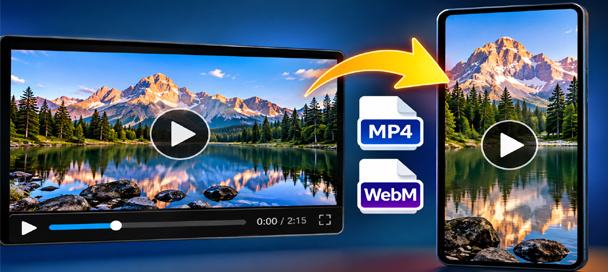
Free Video Converter and Crop Editor: 7 Powerful Ways to Edit Videos
🎬 Free Video Converter and Crop Editor Turn Long Videos Into Exactly What You Need Have you ever received a video that was almost perfect for your project? Maybe it was too long, the wrong shape, or saved in a…
🧪 Behind the Tool
The Free AI Photo Object Remover was created to make a powerful photo-editing technique available without expensive software or complicated controls.
It uses the LaMa AI image-inpainting model, adapted for browser-based processing with ONNX technology.
The model analyzes the surrounding pixels and predicts what should appear in the selected area after an unwanted object is removed.
The tool combines that technology with an adjustable selection brush, undo controls, side-by-side image previews, a processing progress bar, and PNG downloads.
Like the other tools on Mike’s Helpers, it is designed to solve a practical problem while remaining free and easy to use.
🧠 Frequently Asked Questions
What does the Free AI Photo Object Remover do?
It removes selected objects or people from photographs using AI and attempts to reconstruct the missing background.
Is the AI Photo Object Remover free?
Yes. The tool is free to use with no subscription, signup, or paid credits required.
Can I remove a person from a photograph?
Yes. Brush over the person you want removed and click Remove Object. The AI will attempt to rebuild the background behind them.
Which image formats can I upload?
The tool accepts JPG, PNG, and WebP photographs.
How do I select an object for removal?
Use the adjustable brush to paint over the unwanted object. Make sure the entire object is covered before clicking Remove Object.
Can I undo a brush stroke?
Yes. Use Undo Brush to reverse a stroke or Clear Selection to remove the entire painted selection.
What does the blue progress bar mean?
The progress bar displays model-loading activity and shows an animation while the AI is processing your photograph.
Can I download the edited photograph?
Yes. Click Download PNG to save the finished image to your computer.
Does the tool work on old black-and-white photographs?
Yes. It can process black-and-white photographs as well as color photographs. Results depend on the image and the area being removed.
Will the AI always remove objects perfectly?
No. Results vary. Large objects, complicated backgrounds, and overlapping details may produce blurry or unnatural areas that need further editing.
Does my photograph get uploaded to a server?
No. The photograph is processed locally in your browser. The AI model and supporting software are downloaded separately when needed.
Why does the AI take time to load?
The browser needs to download and initialize the AI model before processing. Loading time depends on your internet connection and computer.
Can this tool remove objects from videos?
No. This version is designed for still photographs, not video footage.
This site is ad-supported and free to use. If one of the tools helped you today, feel free to leave a tip.