Mike’s Helpers Free Facebook Reel Maker Creates Amazing Reels Easily! Combine your videos, photos, narration, and music into one vertical video without learning complicated editing software. Upload your footage, arrange your pictures, choose your effects, and let ReelStage put the show together.
Create Reels for Facebook, Instagram, YouTube Shorts, family vacations, birthday celebrations, movie reviews, hobbies, special events, and more. ReelStage is free, works directly in your browser, and requires no account or subscription.
🎬 ReelStage
The lazy way to make Facebook Reels look professional! Put your talking video below a slideshow of pictures and short clips. Your presenter video sets the length and provides the sound.
Video stays at the bottom, fitted without cropping. Its sound plays throughout the Reel.
No presenter selected2. Add slideshow images and clips
Upload presenter video to set Reel length.
Slideshow Timeline
Drag images and short MP4 clips to reorder them. Each timeline item can have its own effect. Zoom B starts at normal size and slowly pushes into the image. MP4 clips may be up to 10 seconds each.
🎙️ Voice / Narration
No voice selected
🎵 Background Music
No music selected
3. Create your Reel
Download Video🎬 What Is Mike’s Helpers Free Facebook Reel Maker?
Mike’s Helpers ReelStage is a free online Reel maker that combines two video areas into one vertical presentation. The upper area displays your photos and video clips, while the lower area holds a separate presenter video.
That presenter can be you talking to the camera, a family member telling a story, a character introducing a movie, or anyone you want appearing on screen.
Instead of spending hours learning a video editor, ReelStage gives you a straightforward way to put your footage together and create a finished Reel.
⚡ How to Make a Facebook Reel with ReelStage
Start by selecting your bottom presenter video. This establishes the length of your finished Reel.
Next, add the pictures or video clips you want to appear in the upper section. ReelStage can distribute the upper slideshow across the duration of your presenter video, or you can adjust individual image timing yourself.
Choose your slideshow effects and transitions, preview the presentation, and export your finished video.
There is no complicated editing timeline to learn. You control the pictures, videos, timing, and effects while ReelStage handles the combined layout.
📱 Create Vertical 9:16 Reels
ReelStage uses a vertical 9:16 layout designed for short-form social media videos. The finished composition is designed around a 1080 × 1920 frame.
The bottom presenter area displays a 16:9 video without cropping it into a vertical portrait. This keeps the presenter visible while leaving the larger upper area available for pictures and video clips.
It’s a practical way to show someone talking while the audience watches the subject being discussed.
🖼️ Add Photos and Videos to the Top Slideshow
The upper section is where your story comes to life. Add photographs, video clips, or a combination of both.
Use vacation photos while someone describes a trip, family pictures during a birthday message, or movie-related images while presenting a review.
Video clips can also retain their original sound, including voices, music, and other recorded audio.
🔊 Important Audio Tip: If your top video already contains narration, music, or other sound, you do not need to add a second narration or music track. ReelStage can play audio sources together, so using multiple sound sources may cause voices or music to overlap. For the cleanest result, use one main audio source unless you intentionally want to mix sounds.
🎞️ Add a Presenter Video at the Bottom
The bottom video gives your Reel a personal touch. Instead of showing only pictures, you can have someone on screen explaining what the audience is seeing.
Record yourself with a phone or camera, use an existing talking-head video, or create a character presentation.
The bottom video’s length controls the overall duration of the Reel, making it easier to match the pictures above to the presentation below.
⏱️ Automatic and Manual Slideshow Timing
Not every Reel needs the same timing. Sometimes you want each picture displayed for an equal amount of time. Other times, you need a specific image to appear when someone mentions it.
ReelStage supports automatic timing based on the presenter video’s duration, along with individual timing adjustments for the upper slideshow.
That makes it useful for both quick projects and presentations where the pictures need to follow spoken narration.
✨ Add Motion, Zooms, and Transitions
A series of still photographs can feel much more engaging when the images move naturally.
Free Facebook Reel Maker includes slideshow effects and transitions that help turn ordinary pictures into a more polished presentation.
Use zoom effects to bring attention to a subject, transitions to move between scenes, and different timing choices to keep the presentation interesting.
You don’t need to manually animate every photograph or learn professional editing software to give your Reel some movement.
🎵 How Sound, Narration, and Music Work
ReelStage can work with sound already included in your video files, along with additional narration or music when needed.
For example, a video in the upper slideshow might already contain someone speaking with music in the background. In that situation, the existing sound may be all you need.
If you add another narration or music source, both sources can play together. This can be useful when mixing sounds intentionally, but it can also create competing voices or overly loud music.
Best practice: Listen to your source videos first. If they already contain the complete soundtrack you want, leave the additional audio options unused. Add extra sound only when your project actually needs it.
👨👩👧👦 Great for Families, Vacations, Hobbies, and More
ReelStage isn’t just for content creators or social media personalities. Anyone with pictures and a video can use it to tell a story.
- Family Memories: Combine photographs with a family member telling the story.
- Vacations: Show destinations, activities, and favorite moments while describing the trip.
- Birthday Celebrations: Create a personal greeting with photos and recorded messages.
- Movie Reviews: Present your thoughts while showing related images and clips you have permission to use.
- Hobbies and Projects: Explain a project while showing the work being done.
- Small Businesses: Introduce products or services with a personal presentation.
- Special Events: Turn memorable moments into a short video presentation.
Whether your Reel is funny, sentimental, educational, or promotional, ReelStage gives you a simple way to combine the pieces.
💻 Preview and Export Your Finished Reel
Before exporting, preview your presentation to check the timing, transitions, pictures, and sound.
When everything looks right, export the completed Reel as a WebM video file.
ReelStage combines the upper slideshow and lower presenter area into a single video, so you don’t have to assemble the two sections afterward in another editor.
🔒 Free Browser-Based Video Creation
ReelStage is designed to run directly in your web browser rather than requiring expensive desktop video-editing software.
There is no account to create, no monthly subscription, and no complicated application to install.
Video rendering can require significant processing power, especially with longer videos or large source files. Performance depends on your computer, browser, and the media you use.
For the smoothest experience, use a modern browser, keep other demanding applications to a minimum, and allow the export process to finish before closing the page.
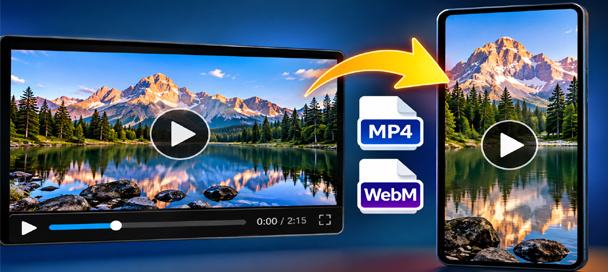
Free Video Converter and Crop Editor: 7 Powerful Ways to Edit Videos
🎬 Free Video Converter and Crop Editor Turn Long Videos Into Exactly What You Need Have you ever received a video that was almost perfect for your project? Maybe it was too long, the wrong shape, or saved in a…
🧪 Behind the Tool
Mike’s Helpers ReelStage grew out of a simple idea: making a professional-looking social media video shouldn’t require becoming a professional video editor.
The project builds on the approach used in the Mike’s Helpers Image to Video Maker, adding a separate presenter video beneath the slideshow.
The goal was to make it easy to combine someone talking with the pictures or clips they’re discussing, without dealing with complicated tracks and editing timelines.
Like the other tools at Mike’s Helpers, Free Facebook Reel Maker is designed to make a practical job easier while keeping the experience free and straightforward.
🧠 Frequently Asked Questions
What does ReelStage do?
ReelStage combines an upper slideshow of photos or video clips with a lower presenter video into one vertical Reel.
Is ReelStage free?
Yes. ReelStage is free to use without an account or subscription.
Can I use ReelStage for Facebook Reels?
Yes. ReelStage creates a vertical video presentation suitable for preparing short-form social media content. Check your platform’s current supported upload formats before posting.
Can I use my own talking video?
Yes. Upload a compatible presenter video to the bottom section and add your pictures or video clips above it.
Can I use video clips instead of photographs?
Yes. The upper slideshow supports pictures and video clips.
Will my top video’s original sound play?
Yes. Upper video clips can retain their original audio, including speech and music.
What happens if I add narration when my video already has sound?
Both audio sources can play together. If your original video already has the narration or music you want, leave the additional audio option unused to avoid overlapping sound.
Do I have to add background music?
No. Additional music is optional. If your video already has a complete soundtrack, you can use its existing audio.
Can I adjust how long each picture appears?
Yes. You can use automatic slideshow timing or adjust individual image durations to better match your presentation.
Does the bottom video control the Reel’s length?
Yes. The presenter video’s duration establishes the length of the finished Reel.
What video format does ReelStage export?
ReelStage exports a WebM video file.
Do I need video-editing experience?
No. ReelStage is designed for people who want to create attractive video presentations without learning complicated editing software.
Can I use ReelStage on my phone?
ReelStage runs in a web browser, but rendering and exporting video can be demanding. A desktop or laptop computer with a modern browser is recommended for larger projects.
Can I use copyrighted music or movie clips?
Only use material you own, have permission to use, or are otherwise legally entitled to include. Creating a Reel does not automatically grant permission to use copyrighted material.
This site is ad-supported and free to use. If ReelStage helped you create something great, feel free to leave a tip.