7 Hidden Formatting Problems That Can Break a WordPress Post
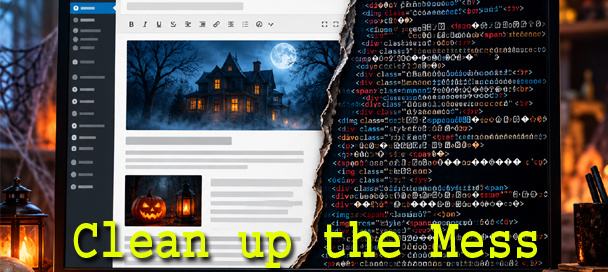
A WordPress post can look perfect in the editor and still be a mess underneath. Hidden WordPress formatting is the code and characters you never see in the visual view. It rides in when you paste text from AI tools, Word, Google Docs, emails, or other websites. Most of the time it sits quietly. Then one day it breaks a layout, ruins a search, or makes your theme behave strangely.
This guide walks through the seven most common problems. You will learn what each one looks like, why it happens, and how to spot it before you hit Publish.
Why a WordPress Post Can Look Fine but Still Be Messy
The visual editor is designed to hide code. That is its whole job. It shows you headings, bold text, and links, but not the HTML that creates them. Anything else tucked into that HTML stays out of sight.
When you copy text from a webpage or document, you rarely copy plain words. Your clipboard usually carries a rich version too, with formatting, styles, and markup attached. WordPress accepts much of that rich content when you paste. It quietly folds the extra code into your post.
Some of what comes along is not code at all. Invisible Unicode characters can live right inside your sentences. They take up no visible space, so you cannot spot them by reading. Your browser, your search box, and other software still see them.
The result is a post that looks clean to a human and cluttered to a machine. Search engines, themes, plugins, and screen readers all read the code, not the pretty preview. That gap is where hidden WordPress formatting causes trouble.
The good news is that every one of these problems leaves clues. Once you know what to look for, you can find them in a few minutes.
Problem #1: Unnecessary Span and Div Tags
Span and div tags are containers. A div wraps a block of content, and a span wraps a few words inside a line. Both have legitimate uses in web design. In ordinary article text, though, they are usually just baggage.
Copy a paragraph from a website, and it may arrive wrapped in several layers of divs. Copy a sentence from an AI chat window, and individual words may come wrapped in spans. Each wrapper often carries a class or style name from the original site.
In the code view, a simple sentence might look like this:
<div class=”content-wrap”><div class=”text-block”><span class=”highlight”>Your sentence here.</span></div></div>
All that really needs to be there is a paragraph tag around the sentence. The rest adds weight without adding meaning.
Extra wrappers cause real problems. A stray class name can match a style in your theme and change fonts or colors unexpectedly. Nested divs can break your spacing or push content out of line. They also make the code harder to edit later, since you must dig through layers to find the text.
Watch for this one when a paragraph looks slightly different from the rest of the post. A different font size or odd margin is often a sign of a wrapper hiding underneath.
Problem #2: Zero-Width and Invisible Unicode Characters
This problem is the sneakiest of the seven. Unicode includes characters that take up no visible space at all. They exist in the text, but they never appear on screen.
The most common is the zero width space, known as U+200B. Others include the zero width joiner, the zero width non joiner, and the byte order mark, U+FEFF. Each has a real purpose in certain languages or files. None of them belong scattered through an English blog post.
Special spaces cause similar trouble. The non breaking space looks just like a normal space, but it behaves differently. In code it often shows up as . Too many of them can produce odd line breaks and stubborn gaps.
These characters cause a surprising list of problems:
- A search for a word in your post fails because an invisible character sits inside it.
- An SEO plugin miscounts your focus keyword.
- A word refuses to wrap properly on mobile screens.
- Copied code or shortcodes stop working for no visible reason.
- A link or email address breaks when someone copies it.
Invisible characters often hitch a ride on text copied from chat windows, PDFs, and some web pages. Because you cannot see them, you have to look for their effects. If a keyword checker insists a phrase is missing when you can plainly read it, suspect an invisible character.
Problem #3: Microsoft Word and Google Docs Code
Many writers draft in Word or Google Docs, then paste into WordPress. It is a natural workflow. Unfortunately, both programs send along a lot of extra code with your words.
Microsoft Word is famous for this. Its HTML can include classes like MsoNormal, inline styles beginning with mso, and odd empty tags such as <o:p></o:p>. It may also add conditional comments meant only for Office programs. None of it helps a web page.
Google Docs has its own habits. Pasted text often arrives inside a bold tag with an ID that starts with docs-internal-guid. That tag is not really making anything bold. Docs also tends to wrap text in spans loaded with inline styles for font family, size, and color.
Inline styles are the real troublemakers. They override your theme’s design one word at a time. Your theme might use one font, while a pasted paragraph insists on Arial at 11 points. The post then looks patchy, especially on mobile.
These styles also travel. Copy that paragraph into another post later, and the problem follows it. Over time, an older site can collect hundreds of posts with mismatched fonts and spacing.
The giveaway is usually visual. If pasted text looks a little off from your normal style, check the code for Word or Docs leftovers.
Problem #4: Junk Attributes
HTML tags can carry attributes, which are extra settings inside the tag. Some are essential, like the href in a link or the alt text on an image. Others are useful only in the place they came from.
Copied content often drags along attributes like data-*, aria-*, role, tabindex, and dir. On their home sites, these do real work. Data attributes store information for scripts. ARIA attributes and roles help screen readers understand interactive controls. Tabindex controls keyboard focus.
The trouble starts when they land in ordinary article text. A paragraph does not need a data attribute from an AI chat interface. A heading does not need a role that describes a button or a message bubble. Out of context, these attributes can confuse rather than help.
Misplaced ARIA labels are a good example. Screen readers trust them. A leftover label can make assistive technology announce something that no longer makes sense. A stray tabindex can make keyboard users stop on text that should never be focusable.
A typical junk filled paragraph might look like this in the code view:
<p data-start=”0″ data-end=”112″ dir=”auto” role=”presentation”>Your sentence here.</p>
The clean version is simply the sentence inside a plain paragraph tag. Everything else is dead weight.
Problem #5: Empty Paragraphs and Elements
Have you ever seen a strange gap in a published post that you never typed? Empty elements are a likely cause. They take up space on the page but hold no content.
The classic example is a paragraph containing only a non breaking space. In code it looks like <p> </p>. Editors often create these when you press Enter several times to add space. Pasted content can bring its own collection too.
Empty headings, list items, and spans also turn up. An empty heading is worse than a blank gap. Screen readers may announce it, and some SEO tools flag it as a structural error.
These gaps are maddening because they are hard to delete in the visual editor. You click into the space, press Delete, and something else moves instead. The fix is easier in the code view, where you can see exactly what is there.
Spacing should come from your theme, not from empty paragraphs. When you rely on blank lines for layout, your post can look fine on a desktop and awkward on a phone.
Problem #6: Tracking Junk Inside Links
Links are another place where hidden WordPress formatting hides in plain sight. A link can look like a simple word on the page, yet point to a very long address.
Much of that length usually comes from tracking parameters. These are added after a question mark at the end of a URL. Common ones include utm_source, utm_medium, and utm_campaign. Others include fbclid from Facebook and gclid from Google Ads.
Here is what that can look like:
https://example.com/article/?utm_source=newsletter&utm_medium=email&utm_campaign=fall_promo&fbclid=IwAR0abc123
The real destination is just https://example.com/article/. Everything after the question mark is tracking data meant for someone else’s analytics.
Leaving these parameters in your links causes a few problems. They can credit another site’s campaign with your visitors. They make your links longer and messier to manage. In some cases, they split one page into several versions in analytics reports.
Check any link you copied from an email, social post, or search ad. Hover over it in the editor or look in the code view. If the address is much longer than the page name, it probably carries tracking junk.
Problem #7: Old or Broken HTML
Posts that have been edited many times collect leftovers. Older posts in particular often hold code from earlier editors, plugins, and themes. Some of it no longer does anything at all.
Common examples include the old <font> and <center> tags, which modern HTML no longer supports. You may also find unclosed tags, mismatched tags, and wrappers from page builders you stopped using years ago. HTML comments from old plugins can linger too.
Shortcodes are another clue. If you see text in square brackets on the live page, the plugin that once handled it has probably been removed. Old embed formats can also stop working when the plugin behind them disappears. Some older sites still carry YouTube links beginning with httpvh, a format created by a video plugin.
Broken HTML can spill problems into the rest of the page. One unclosed tag can make everything below it bold, italic, or oddly indented. A leftover wrapper might break your sidebar or push your footer out of place.
Repeated editing makes it worse. Switching between the visual view and the code view over and over can leave odd fragments behind. If an older post suddenly looks broken after a theme change, look at its code first.
How to Check for Hidden WordPress Formatting Before Publishing
The simplest check takes less than two minutes. You just need to look at your post’s code before you publish it.
In the Classic Editor, click the Text tab at the top right of the editing box. That switches you from the visual view to the raw HTML. In the block editor, open the Options menu with the three dots in the top corner and choose Code editor. You can also press Ctrl+Shift+Alt+M on Windows or Cmd+Shift+Option+M on a Mac.
Once you are in the code view, scan for these warning signs:
- Span or div tags wrapped around ordinary paragraphs.
- Style attributes full of fonts, sizes, or colors.
- Class names like MsoNormal or IDs containing docs-internal-guid.
- Attributes beginning with data or aria in plain article text.
- Paragraphs that contain only .
- Links with long strings after a question mark.
- Old font or center tags and leftover comments.
Invisible characters are harder to see, even in the code view. A quick test is to search the post for your main keyword with your browser’s find tool. If it misses a phrase you can clearly read, something hidden may be sitting inside it.
Finally, preview the post on a phone as well as a desktop. Odd gaps, mismatched fonts, and words that will not wrap are often easier to spot on a small screen.
Clean the Code Without Destroying the Article
Finding the problems is the first half of the job. Fixing them is where many writers get into trouble.
The quick fix is to strip everything. Paste the text into a plain text editor, then copy it back. That removes the junk, but it also wipes out your headings, links, lists, and emphasis. You then spend twenty minutes rebuilding the formatting by hand.
Hand editing the HTML is the other option. It works for a short post, but it is slow and easy to get wrong. Miss one closing tag, and you create a fresh problem while fixing the old ones.
A better approach is to remove the junk while keeping the structure. That is exactly why the free Universal Text & HTML Cleaner exists here at Mike’s Helpers. It removes the code that does not belong while keeping the parts that matter.
Its WordPress Article mode is designed for this exact situation. It preserves headings, paragraphs, links, lists, bold, and italics. At the same time, it targets invisible Unicode, junk attributes, unneeded wrappers, empty elements, Office leftovers, and common tracking parameters. It even keeps JSON-LD structured data intact.
Everything runs locally in your browser. Your article is not sent to a server or an AI service, and the tool does not rewrite your words. You get your own article back, just without the hidden mess.
The tool page explains each option in detail. Use this guide to understand what you are looking for, and let the cleaner handle the tedious part.
Final Check
Before you hit Publish, run through this short list:
- Open the code view and scan for spans, divs, and inline styles.
- Look for Word or Google Docs leftovers.
- Remove junk attributes from plain article text.
- Delete empty paragraphs and headings.
- Trim tracking parameters from every link.
- Clear out old tags, comments, and dead shortcodes.
- Search the post for your keyword to catch invisible characters.
- Preview the post on both a phone and a desktop.
Hidden WordPress formatting is easy to miss because it lives out of sight. Once you build this check into your routine, it takes only a minute or two. Your posts will load cleaner, look more consistent, and give search engines and readers exactly what you intended.